Selecting the Final Date & Time Option
Once your guests have submitted their responses, the final step in scheduling your event is selecting the winning option. Selecting the final date/time option automatically closes your poll and sends an official "Save the Date" notification email to all invited guests.
ℹ️ Important Distinction: Selecting a single final date is the standard method for finalizing your poll and notifying all participants of the winning date. This feature is available on all basic and premium polls. It is not to be confused with Confirming Multiple Dates, which is a specialized Premium subscription feature used to highlight and communicate multiple selected dates at once.
Why Select a Final Date?
- Instant "Save the Date" Email: Automatically dispatches an email notification to all guests telling them the organizer has picked the final date/time.
- Clear Visual Winner: Displays a prominent winning badge on the poll results page so all participants immediately see the chosen slot.
- Calendar Sync Integration: For organizers synced with Google Calendar, selecting the final date can automatically update or create the event entry in Google Calendar.
Step-by-Step Guide: How to Pick the Final Date
-
Open Your Poll Results
Navigate to your active poll page as the organizer to review guest votes and availability tallies.
-
Select "Pick as Final"
Locate the date/time option that received the best availability. Click the options menu in the upper-right corner of that date card and select "Pick as final".
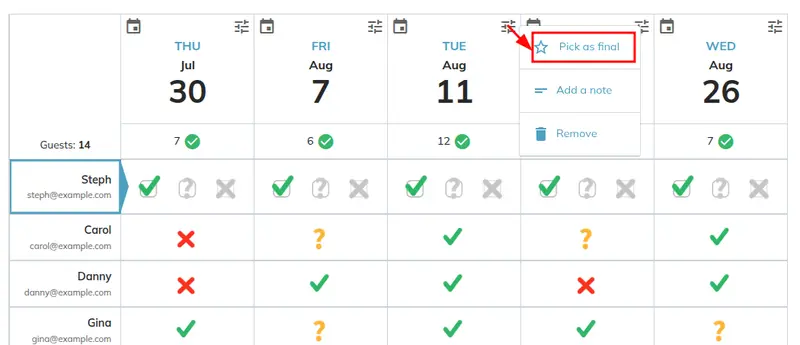
Click "Pick as final" from the drop-down menu in the upper-right corner of the date/time card.
-
Confirm & Send "Save the Date" Notifications
A confirmation pop-up will ask you to confirm your selection. Once confirmed, WhenAvailable automatically sends an email to all invited guests announcing the final meeting date and time.
What Your Guests See & Receive
When you pick a final date, your guests automatically receive an email notification (as shown below) titled "Mark your calendar for [Your Poll Title]". The email clearly highlights the winning date and time, includes any personal message you provided, and contains a direct link to view the poll details.
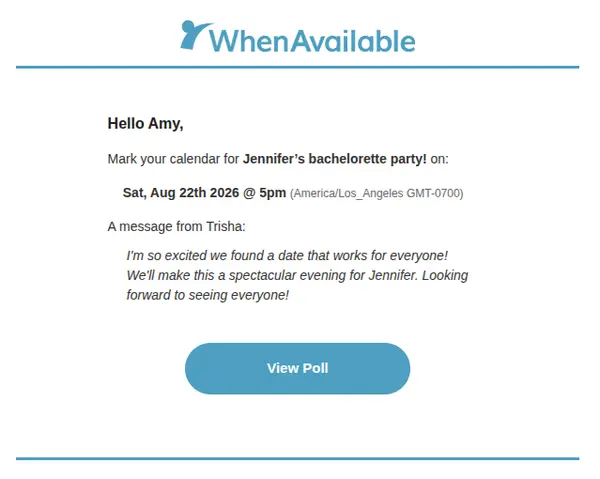
Example of the "Save the Date" email sent to guests.
💡 Pro-Tip: Need to change the date later? You can unselect or change the picked final date at any time from your poll settings menu if plans change.